
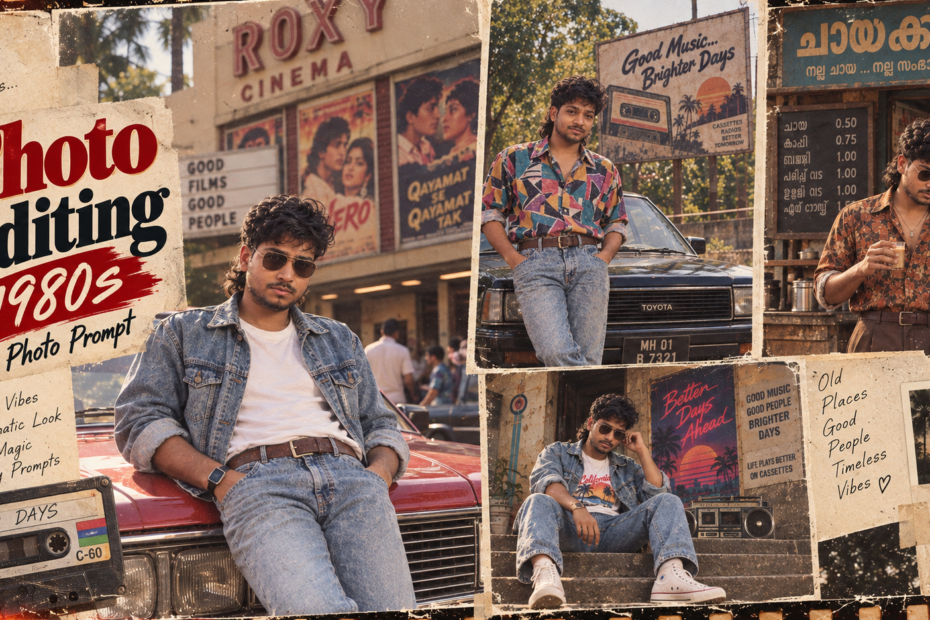
For the last 3-4 days, Instagram has been completely flooded with this one trend — 1980s style AI photos. You’ve probably scrolled past at least a dozen of them already, maybe even seen a few friends post theirs and wondered “how did they do that?” It’s on Instagram, it’s on Facebook, it’s all over WhatsApp status updates too. Everyone’s converting their normal photos into this retro 80s look and putting it out there, and honestly, most of them look incredible.
But here’s the thing — most people have no idea how it’s actually being done. They just see the final photo and assume it’s some complicated editing trick or an expensive app. It’s neither. It’s AI, and it just takes the right prompt.
So in today’s blog, I’m going to show you exactly how this is done — step by step, no confusing jargon, no expensive tools. And because one prompt doesn’t fit every photo or every vibe, I’m sharing over 50 different prompts you can use, so you can pick whichever style matches what you’re going for and create your own viral 1980s photo in just a couple of minutes.
Let’s get into it.
How to Create Your Own 1980s AI Photo (Step-by-Step)
Alright, let’s get into the actual process. I promise this is way simpler than it looks, and you don’t need any editing skills at all. Just follow these steps exactly.
Step 1: Download ChatGPT
If you’re on mobile, the first thing you need to do is download the ChatGPT app from the Play Store (or App Store if you’re on iPhone). It’s free to download, so don’t worry about that. Just search “ChatGPT” and install the official app.
Step 2: Open a New Chat
Once it’s installed, open the app and start a new chat. You’ll see a blank chat window — that’s exactly where we’re going to work.
Step 3: Paste the Prompt
Now here’s where the magic happens. I’ve shared over 50+ prompts in this blog below — pick whichever style you like the most, copy it, and paste it directly into the ChatGPT chat box. Don’t skip this step or change the wording too much, because the exact prompt is what gives you that authentic 1980s look.
Step 4: Upload Your Photo
After pasting the prompt, upload the photo of the person you want to convert into the 1980s AI style. This could be a selfie, a photo of a friend, or even a family picture.
One important thing I really want to stress here — make sure the photo you upload has a clear, visible face. Not blurry, not covered by sunglasses or a mask, not turned too far to the side. The clearer your face is in the original photo, the more accurate and realistic your final 1980s photo will turn out. This one small detail makes a huge difference in the final result.
Step 5: Hit Generate
Once your prompt is pasted and your photo is uploaded, go ahead and press the generate/create button. ChatGPT will start processing your image based on the prompt and the photo you gave it.
Step 6: Wait a Few Minutes
This part just needs a little patience. Give it a few minutes to process everything and create your image properly. Don’t close the app or refresh while it’s working — just let it finish completely so the quality doesn’t get affected.
Step 7: Download Your Photo
Once your image is ready, download it straight to your phone’s gallery. Take a moment to look at it — most people are genuinely surprised at how realistic and accurate these turn out.
Step 8: Share It
And now for the fun part — share it. Post it on Instagram, put it up as your WhatsApp status, send it to your family and friends. Trust me, once people see your 1980s photo, they’re going to ask you the same question everyone’s been asking — “how did you make this?” And now, you’ll actually know the answer.
50+ 1980s AI Photo Prompts You Can Copy and Paste Right Now
Trending Prompts
Choose your favourite prompt and copy it instantly.
1980s retro vintage
[Reference Image] Strict facial identity lock: Use the face, facial structure, features, and expression from the reference image with 100% fidelity.
Full-body 1980s vintage color photograph of the man from the reference image, sporting voluminous 80s wavy mullet hair and a neat beard, smiling casually. He is leaning back against the front grille of a classic dark 1980s Toyota sedan with his hands tucked into his pockets and legs crossed at the ankle. Outfitted in retro 1980s street fashion: a vibrant, colorful abstract geometric-print button-up shirt with rolled-up sleeves, tucked into high-waisted acid-wash denim jeans with a wide brown leather belt, and worn white retro sneakers. Background features soft outdoor daylight, lush green trees, and an aged roadside billboard displaying the text “Good Music… Brighter Days”. Authentic 35mm retro film aesthetic, subtle grain, warm sunlight, gentle edge light leak, and an orange film timestamp reading “JUN 26 1986” along the lower left edge.1980s retro vintage
Use the face and identity of the man in the reference image with strict facial fidelity, preserving his exact bone structure, beard, and voluminous hairstyle. Generate a medium shot of him leaning against the hood of a vintage red car during golden hour. He is wearing tinted aviator sunglasses, an unbuttoned washed denim jacket with rolled-up sleeves, a plain white t-shirt, blue jeans, and a brown leather belt. The background features a retro cinema building with palm trees, warm sunlight flare, and 1980s aesthetic film posters. Style the image with warm 35mm film photography, natural grain, and authentic retro color grading.
1980s retro vintage
> A medium full shot of the man from the reference image, maintaining strict facial identity, facial structure, features, and expression with high fidelity. > He leans casually against a vintage black motorcycle parked outside a rustic 1980s Kerala roadside tea shop (chayakada). He wears an open-collar, retro brown-and-orange floral print shirt with rolled-up sleeves, high-waisted pleated brown trousers secured with a leather belt, a slim pendant necklace, and a classic leather-strap wristwatch. He holds a small traditional cutting chai glass in one hand. > The background features weathered walls plastered with aged Malayalam newspapers, a vintage 1980 Malayalam film poster, a rustic wooden counter with steel tea canisters, and an antique teal signboard with faded Malayalam typography. > Styled in a 1980s retro film aesthetic with warm sepia and earthy tones, authentic 35mm film grain, subtle vintage paper border weathering, soft natural daylight, highly photorealistic. >
1980s retro vintage
> Low-angle, medium-full shot of the man from the reference image, maintaining strict facial identity, bone structure, and likeness with high fidelity. > He sits casually on weathered concrete steps, slightly leaning back, adjusting dark aviator sunglasses with one hand. He is styled in an oversized vintage acid-wash denim jacket with cuffed sleeves, paired with matching loose-fit acid-wash denim jeans and white high-top canvas sneakers. Underneath, he wears a white graphic tee with an 80s “California” sunset palm graphic, accessorized with a subtle gold chain necklace and a vintage silver digital watch. > Beside him in the background rests a classic retro 1980s boombox cassette player, next to an aged wall decorated with an 80s synthwave poster reading “Better Days Ahead” in neon lettering, alongside a leaning vintage surfboard. > Authentic 1980s color grading, heavy 35mm film grain, soft warm sunlight, distressed polaroid borders, ultra-realistic. >
1980s retro vintage
A retro 1980s cinematic portrait of a handsome South Indian man with thick wavy hair, a neat beard, and mustache, casually leaning against the bonnet of a vintage white Hindustan Ambassador car. He is wearing a dark brown open-collar button-down shirt with rolled-up sleeves, tucked into high-waisted beige pleated trousers with a slim leather belt. In the background, a rustic rural village setting with vintage movie posters pasted on weathered walls and traditional tiled-roof houses.
1980s retro vintage
> A medium-shot 1980s retro vintage photo of the young man and woman from the reference image, preserving their exact facial identities, features, and expressions with high fidelity. The couple sits together on outdoor stone steps. The woman sits slightly behind with her arm casually draped over the man’s shoulder; she has voluminous curly dark hair held with a neon pink scrunchie, dark sunglasses, pink hoop earrings, a vibrant 1980s pink, purple, and teal color-blocked windbreaker jacket over a light pink top, and acid-wash jeans. The man sits in front looking directly at the camera, wearing dark aviator sunglasses, styled textured dark hair, a neat trim beard, an oversized acid-wash denim jacket with rolled sleeves over an 80s California sunset graphic tee, matching acid-wash jeans, and a vintage black digital wristwatch on his left wrist. Behind them are weathered, rustic dark wooden doors and textured stone walls. Authentic 1980s 35mm film aesthetic, warm nostalgic Kodachrome color tones, visible film grain, soft natural outdoor lighting, distressed aged paper borders, highly photorealistic.